To act as your agent for your Self Assessment, we need to be authorised on the HMRC online portal. Here’s how to add our details in a few simple steps.
Step 1: Log in to HMRC online services
Head to the HMRC online portal and sign in to your personal tax account.
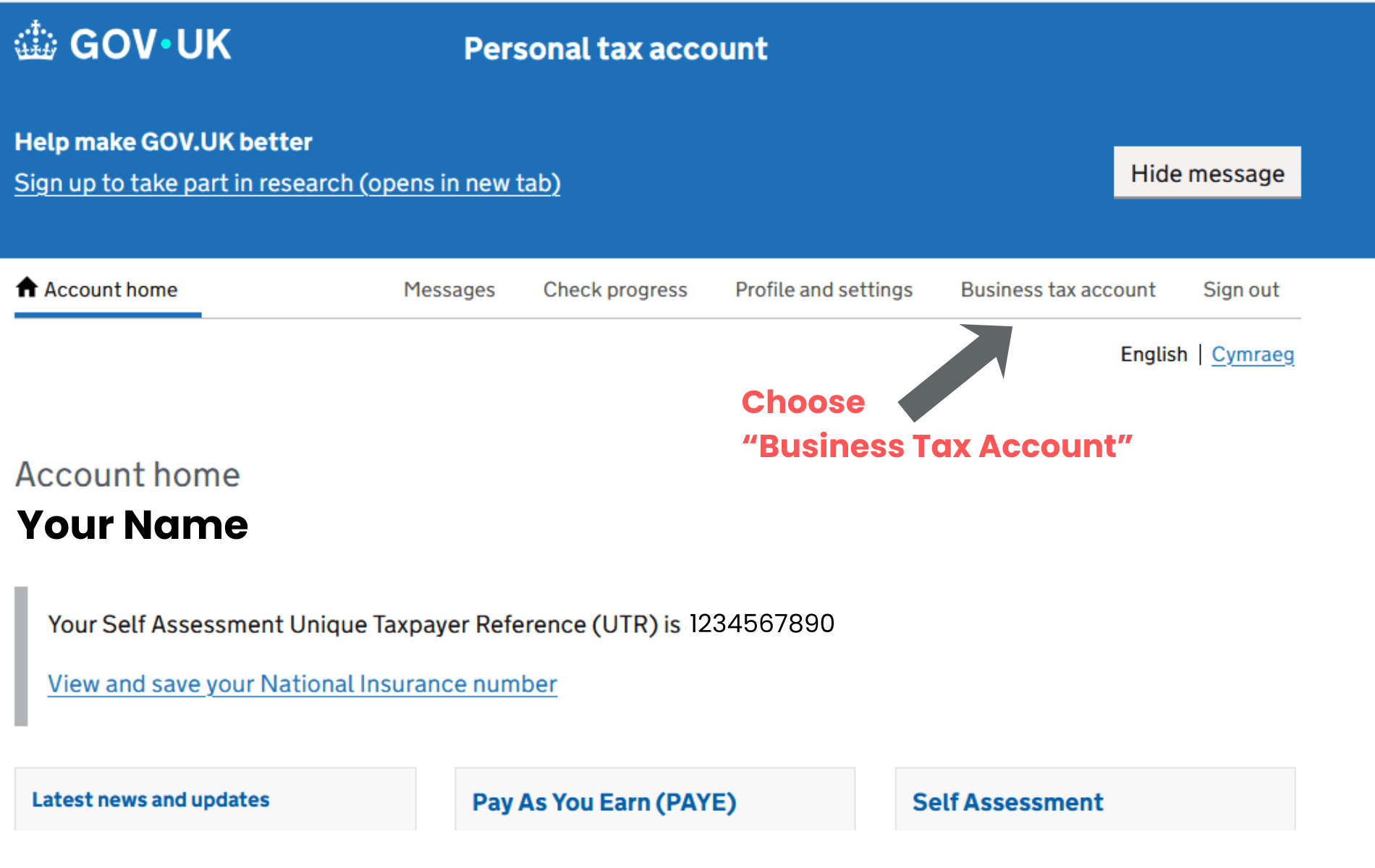
Step 2: Select “Business tax account”
Once you’re logged in, select “Business tax account” from the menu at the top of the page.
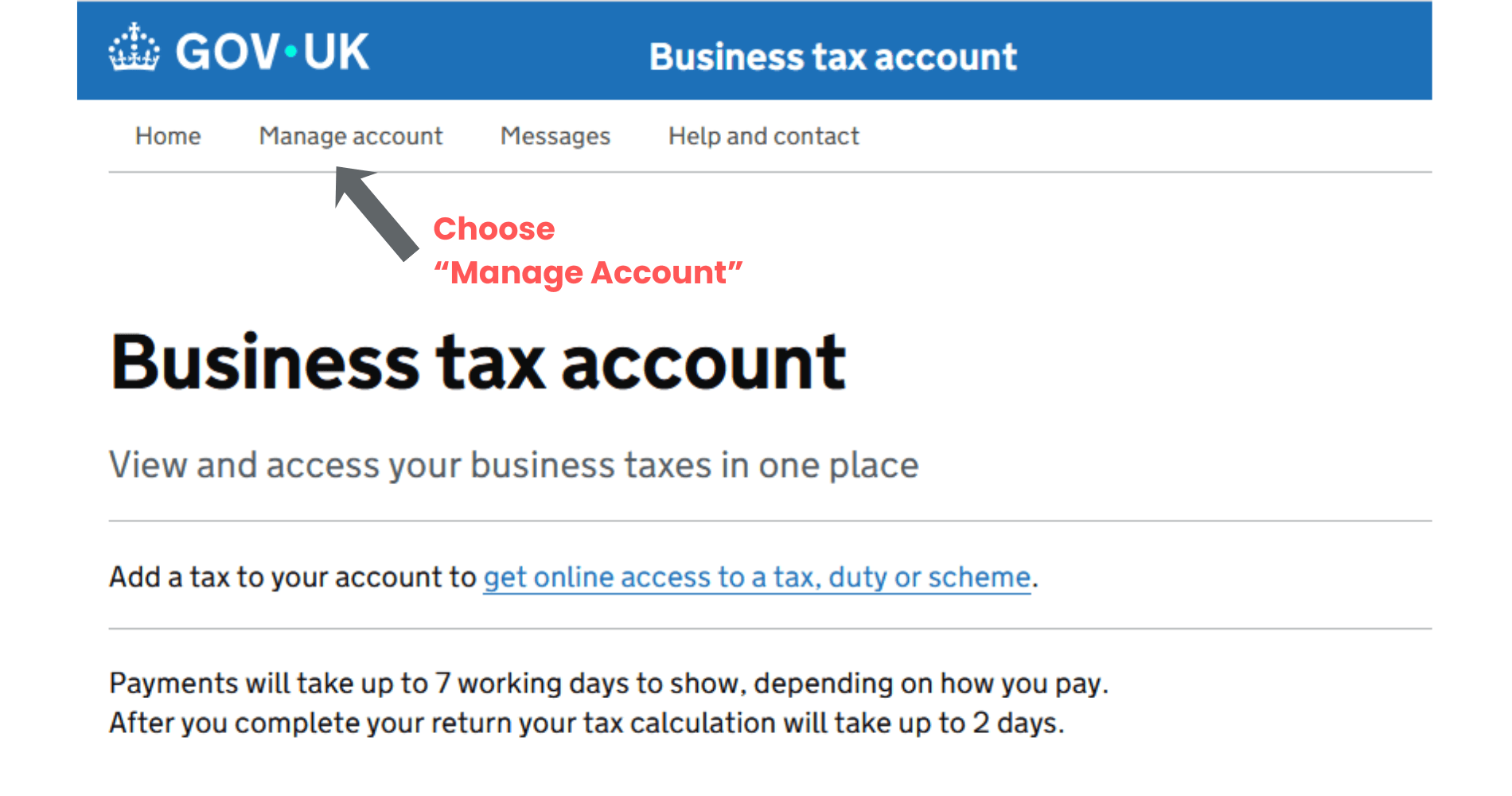
Step 3: Choose “Manage account”
On the business tax account page, select “Manage account” from the options at the top.
Step 4: Scroll down to ” Accountant and tax agent access”
Scroll down the page until you see the “Accountant and tax agent access” section. Click the link “Add, view or change tax agent”.

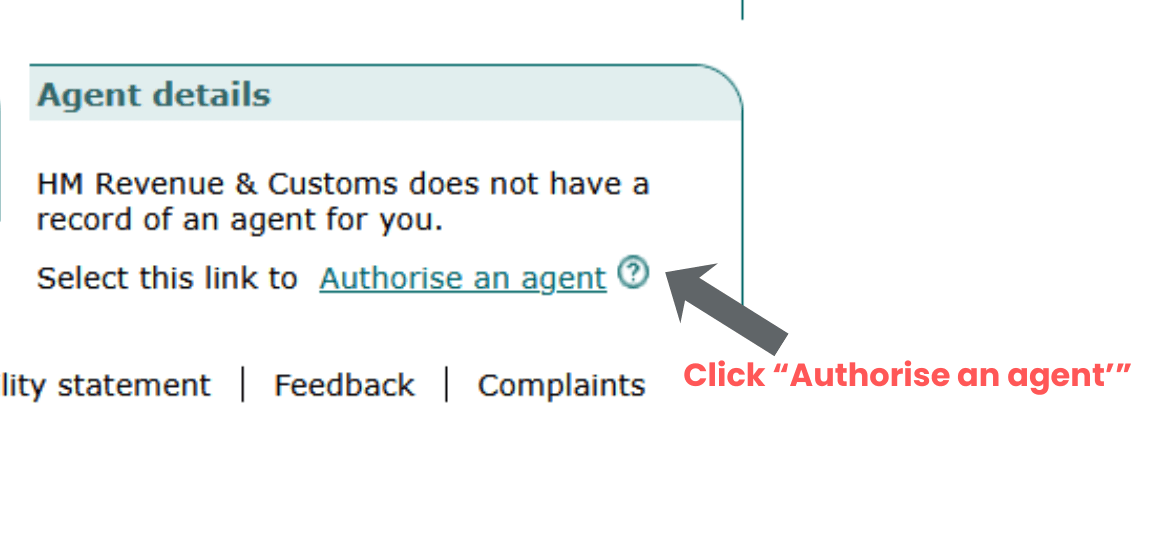
Step 5: Select “Authorise an agent”
The next screen will look a little older than the rest of the site. Under the “Agent details” section, at the bottom right of the page, click the link “Authorise an agent” link.
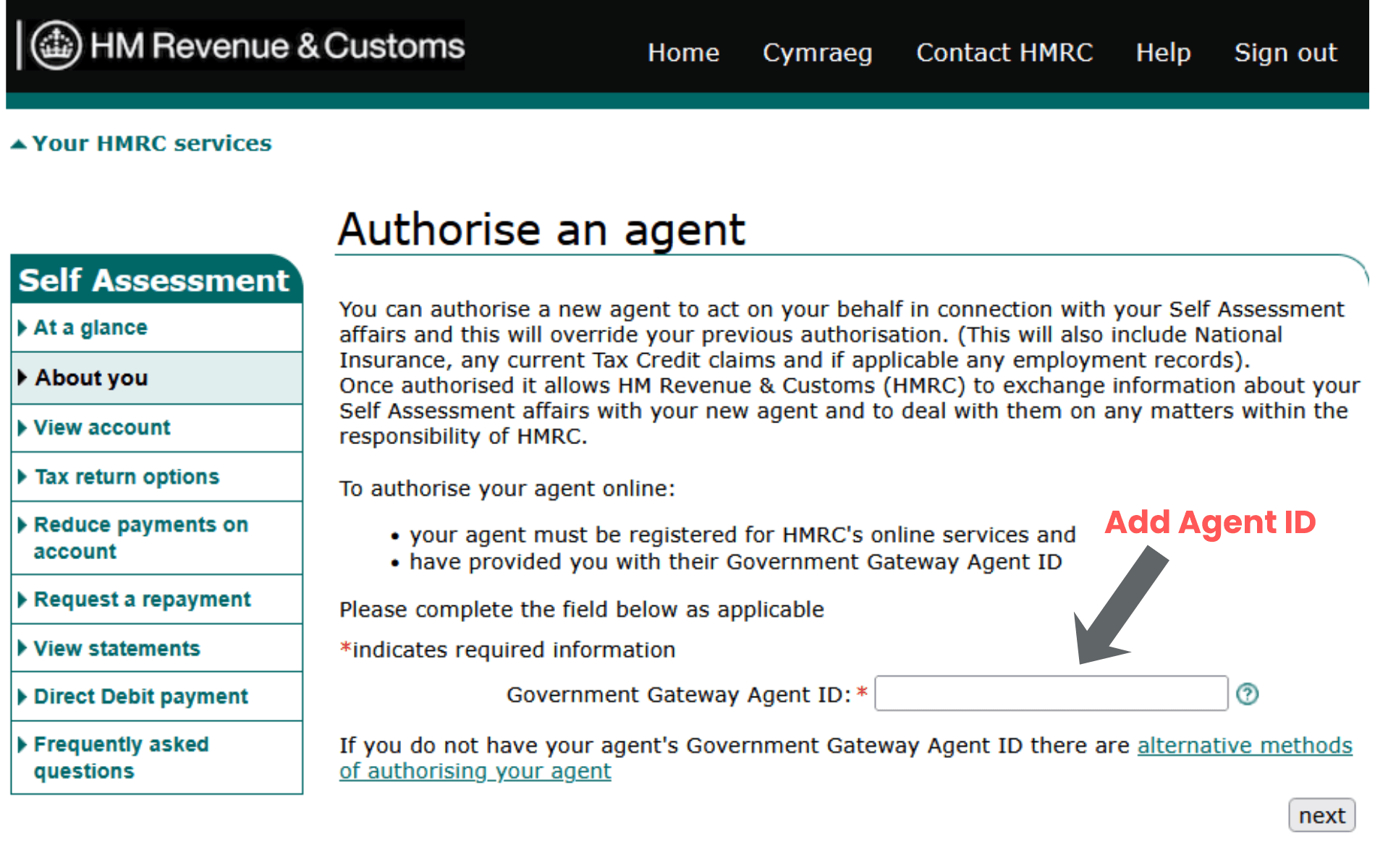
Step 6: Enter our agent ID
Add Maslins’ Government Gateway Agent ID to the box and click next. Your accountant will provide this reference number.
Step 7: Confirm our details
Check that the details showing on screen are correct for Maslins. If everything looks right, tick the confirmation box and hit next.
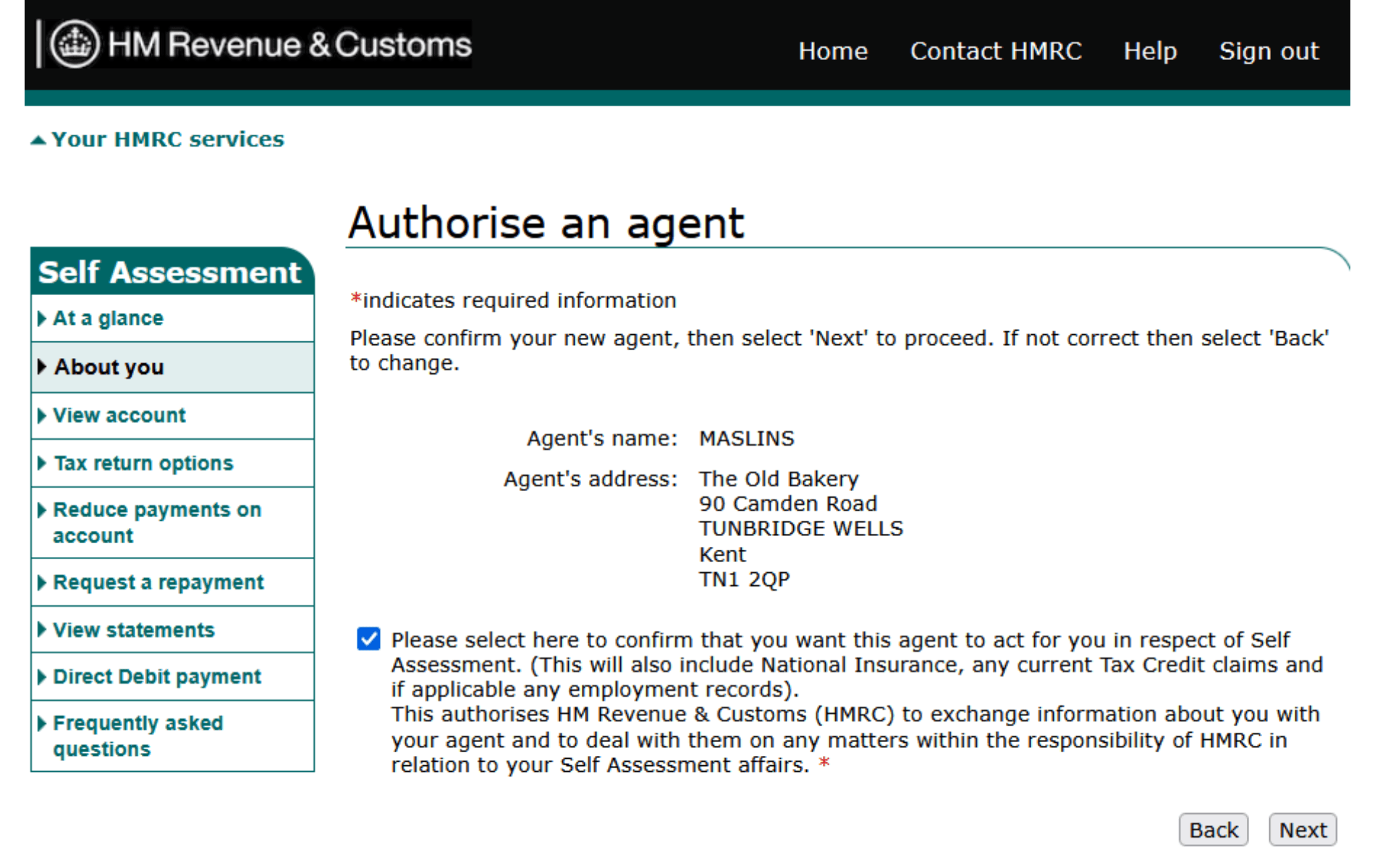
That’s it. Once confirmed, we’re authorised to deal with HMRC on all matters relating to your Self Assessment.
If you run into any problems along the way, or you’re not sure what to do at any point, just get in touch and we’ll talk you through it.